Expenses and staff payouts
Posting an expense records an obligation and incurred cost. Recording a payment settles that obligation and deducts the selected Fund Sources.
Record an operating expense
- Open Expenses → Operating Expenses → New expense.
- Enter the incurred date, due date, payee, category, description, amount, and any reference or notes.
- Save and review the draft.
- Have an Admin post it.
- Open the posted expense to record full or partial payments when money is paid.
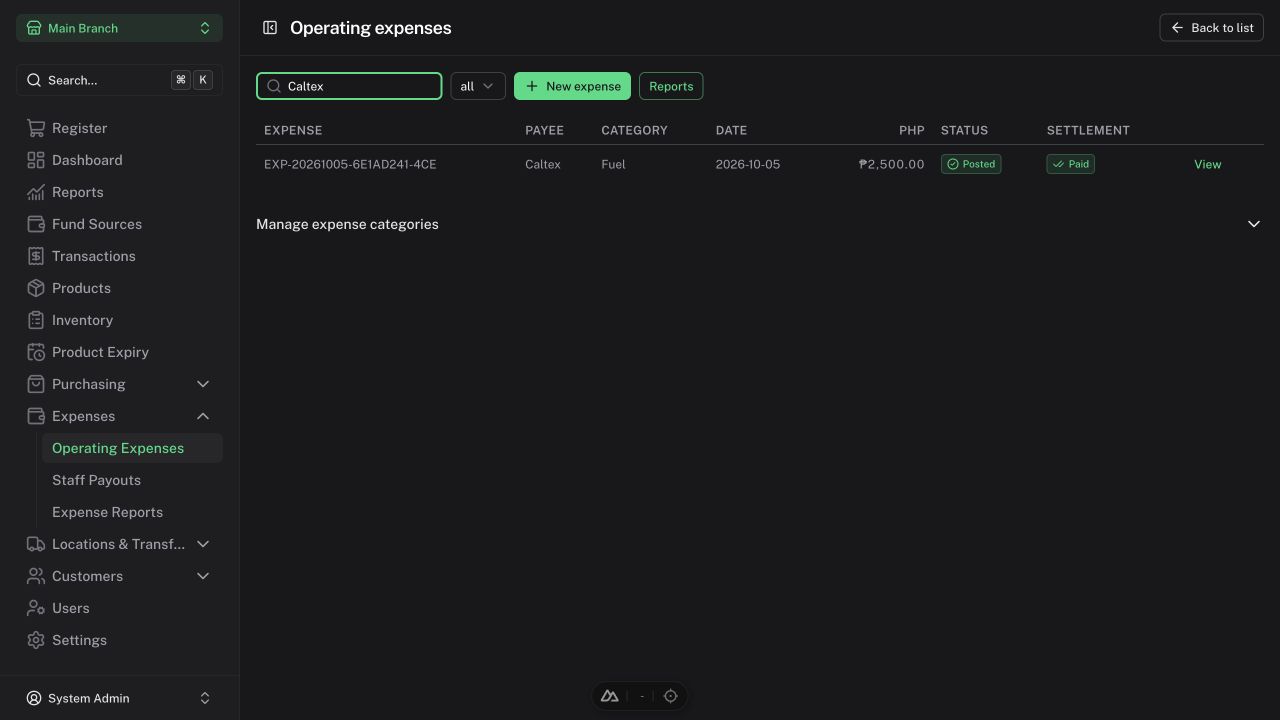
Settlement is shown separately as Unpaid, Partially paid, or Paid. An outstanding posted expense becomes overdue when it is past its due date.
Managers can prepare ordinary expenses and pay posted ordinary expenses using ordinary noncash sources in their branch. Admins retain posting, reversal, and wider funding access. Admins manage ordinary expense categories.
Do not also enter inventory supplier bills as operating expenses; doing so double-counts the obligation or cost.
Pay an expense
On its detail page, enter the payment date, amount, funding rows, reference, and notes. Funding rows must equal the payment total. Payments cannot predate the incurred date. The app prevents overpayment.
Recording a payment sends no external money. Outgoing movements require sufficient source funds.
Correct an expense
Reverse dependent payments first, then reverse the expense with a reason and date. Posted originals remain in history, and reports include the negative reversals on their dates. Older eligible corrections require Admin posting-day override.
Staff payout batches
Only Admins can access staff records, payout templates/batches, salary and allowance obligations, their payments, and private report details.
- Open Staff Payouts and add the staff records; staff do not need POS logins.
- Create a template containing expected salary and allowance amounts.
- Choose an inclusive period start/end and due date, then create a cutoff batch.
- Review and edit the draft amounts and dates.
- Post the batch. Positive salary/allowance rows create linked obligations.
- Open those obligations and record their payments using Admin-only Fund Sources.
Overlapping posted periods for the same staff member are rejected, including across branches. Template edits do not alter saved batches. Reverse dependent payments before reversing a batch.
This feature tracks payouts. It does not calculate statutory deductions, attendance, automatic payroll accruals, or external money transfers.