Products and inventory
Products define what you sell. Inventory records the movement and availability of stock.
Add a product
As Admin, open Products → Add Product. Enter the product details, category, stock/quantity rules, and selling units and prices required by the form. Review each unit's conversion to the base unit before saving.
Use consistent names and units. A box and a piece can represent different quantities of the same product; selecting the wrong unit can change both the checkout amount and stock deduction.
New to units? Read Units of Measurement and Base UOM before entering opening stock. It explains pieces versus boxes, measured goods, multipliers, and prices with worked examples.
Import opening products and stock
- Open Products → Import CSV and select the destination warehouse in the active branch.
- Download the current template. Keep its required headers.
- Fill in product names, base units, count/measured rules, quantities, selling prices, and opening unit costs.
- Select Validate and preview.
- Review every row, warning, and destination.
- Select Post import only when the preview is correct.
The import supports up to 1,000 rows and a 1 MB UTF-8 CSV. Positive opening stock needs an explicit nonnegative unit cost. A blank selling price leaves the product as a draft excluded from checkout. Blank SKUs receive generated values; supplied SKUs must be new and unique.
Required product custom fields can block this limited import template. Ask the Admin to review those requirements first.
Posting creates products and opening stock together. Posted imports cannot be edited or reposted. Reimporting the same names with generated SKUs can create additional products; review duplicate-file warnings carefully.
Review stock and movements
- Open Inventory.
- Use Global Product Ledger for the product summary or Warehouse Breakdown for location detail.
- Search by SKU or product name and apply category/low-stock filters.
- Open Ledger to investigate movements.
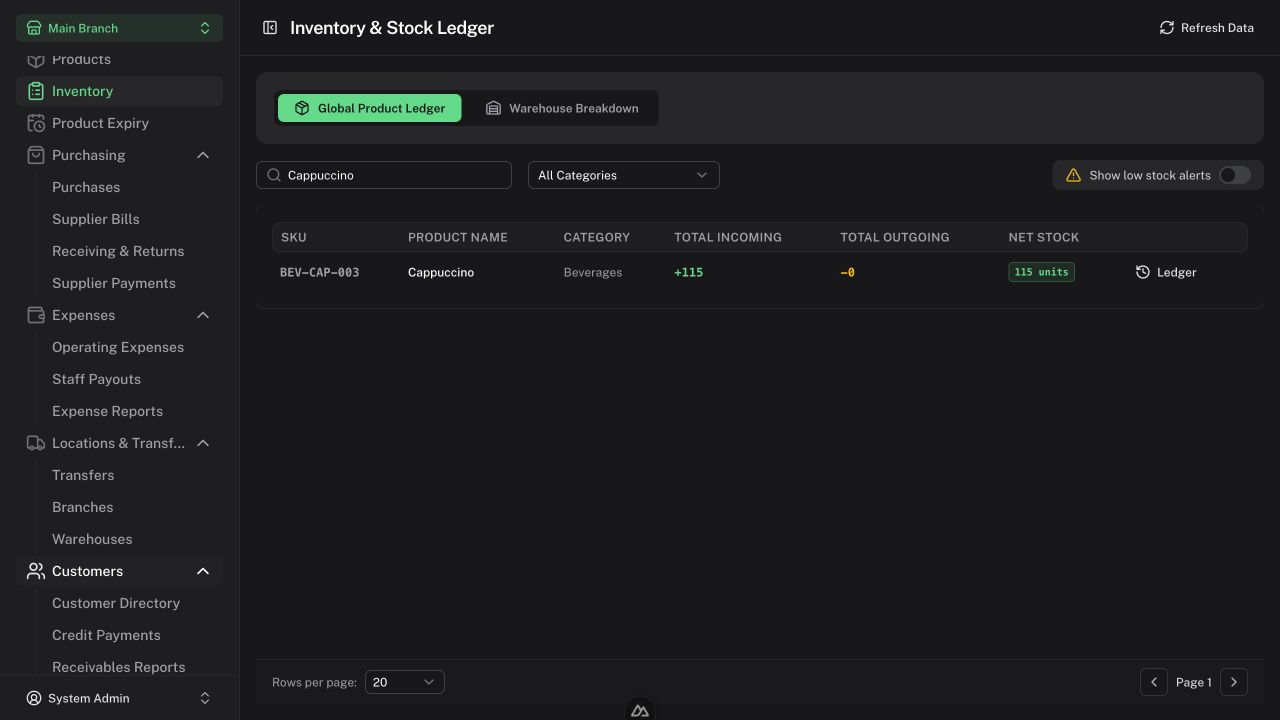
Check the warehouse breakdown when register availability differs from the overall product quantity. Goods dispatched in a transfer are unavailable for sale until accepted at the destination.
For new delivered stock, use Receiving. For a verified physical discrepancy, use the authorized inventory adjustment workflow and record a reason. Do not edit historical receiving or sales records to conceal a discrepancy.
Maintain expiry reminders
- Open Product Expiry → New declaration.
- Select the product and warehouse, enter the declared quantity and expiry date, and add a useful reference.
- Save the declaration.
- Filter unresolved declarations by timing and check the physical goods.
- Update or resolve the reminder when your physical check warrants it.
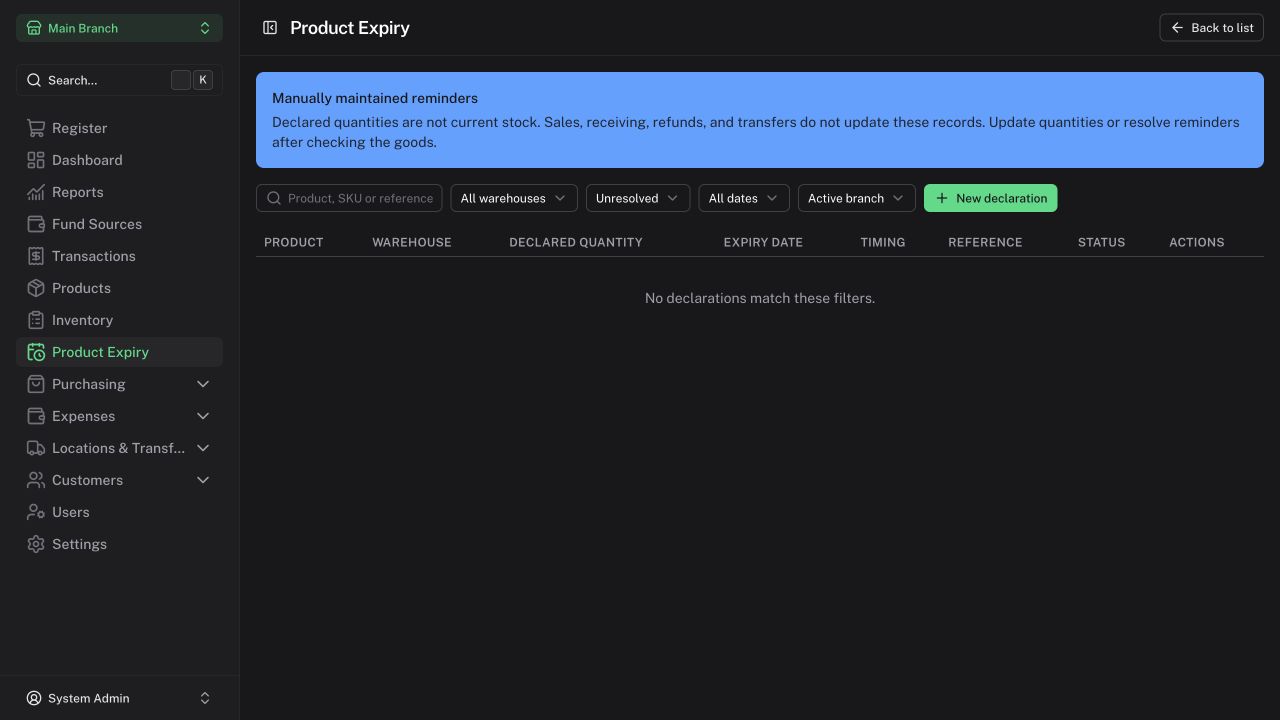
Manually maintained reminders
Declared quantities are not current stock. Sales, receiving, refunds, and transfers do not update expiry declarations. Resolving a reminder does not dispose of stock; record any actual stock correction separately.
Archive discontinued products instead of removing their stock and document history.